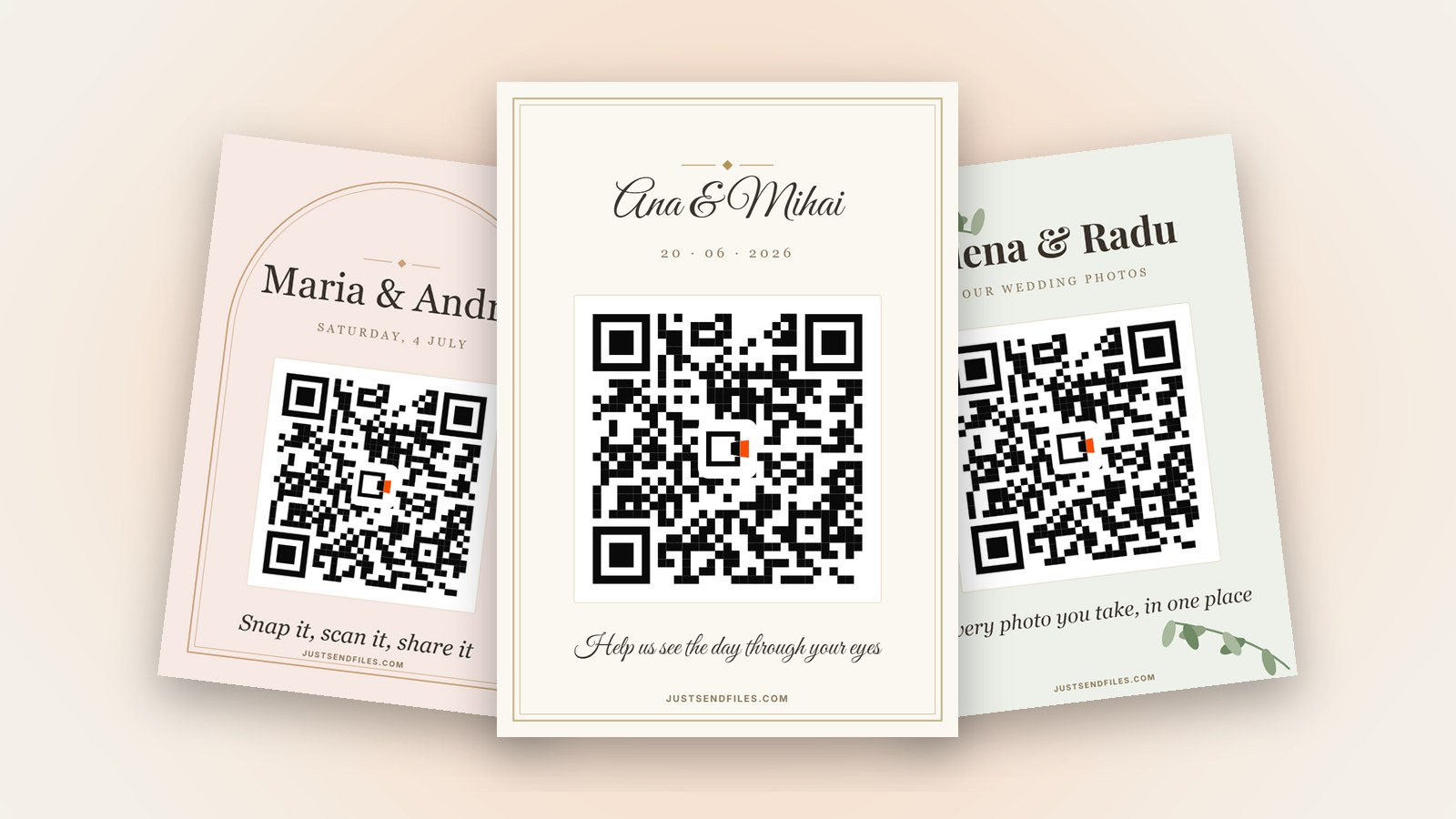

In short
- Three lines: your names, the date, and one clear line under the QR.
- Say what happens. “Scan to add your photos” beats a clever riddle.
- Start with a free Room, then write your sign in the QR editor.
You have the QR for your wedding photos and a sign to print. Now you are looking at the empty lines and wondering what to write that is warm but still clear.
Guests read a sign for a second or two while they walk past. If they can’t tell what the code does, they won’t scan it, however lovely the words sound.
What guests need to know
A good sign answers three things at a glance: whose wedding it is, what the code does, and that it takes a moment. The rest is decoration.
The QR editor gives you three lines for that: a title, an optional second line, and the line under the QR. Each takes up to 60 characters.
Titles with your names
The title is the biggest text, so keep it short. Try “Ana & Mihai”, “Ana & Mihai are married”, “Welcome to our wedding” or “Ana & Mihai, 20 June”.
For a warmer tone, try “Thank you for being here”, “Our day, through your eyes” or “Share the love, share the photos”. Pick one and let it breathe.
The second line
Use the second line for a date such as “20 · 06 · 2026”, a place such as “Villa Rosa, Brașov”, or both if they fit. It is optional.
It also works as a gentle nudge: “Every photo counts, even the blurry ones” or “Candid shots welcome”. Leave it empty when the title already says enough.
The line under the QR
This line does the real work. The default is “Scan to add your photos”, and it is hard to beat because it names the action in five words.
Other lines that work: “Scan with your camera to add photos”, “Scan, add your photos, see everyone’s”, “No app, no account. Just scan” and “Add your photos and videos here”.
Avoid a line like “Capture the magic” on its own. Guests who don’t know what happens next usually walk on.
Make it easy to read
Choose a font that matches the day and still reads easily, such as Elegant or Classic for the title. Script and Hand suit short lines best.
Tick the option that prints the Room’s link under the QR if some guests may not scan. Then print one sign and test-scan it from a few steps away.
Before you print them all
The plain QR is in every Room. The text, fonts and templates come with the custom QR behind the Edit button, which comes with Plus, Pro or a Room pass for one Room.
Free Rooms last at most 3 days, and wedding photos keep coming for weeks. Plus keeps a Room up to 30 days, Pro longer, and a Room pass keeps that one Room a year.
Your design is saved on the Room, so the next download matches. Once the signs are printed, don’t use Regenerate link, or every printed QR stops working.
Three lines, nine fonts and eight templates, saved on your Room. Guests scan and add photos in the browser, with no account.
Write it in the QR editor →Questions
How long should the text be?
Each of the three lines takes up to 60 characters, but shorter reads better from a distance. A few words for the title and one short sentence under the QR is plenty.
Should the sign say that no app is needed?
It helps, because many guests expect to install something. “No app, no account. Just scan” fits under the QR, and it is true for guests of a Room.
Do guests know how to scan it?
Most will use the camera. Apple says to open Camera, frame the code and tap the link that appears, and Google says a Pixel camera shows a bubble or link to tap.