
In short
- One QR code on a sign opens the Room, guests need no app or account.
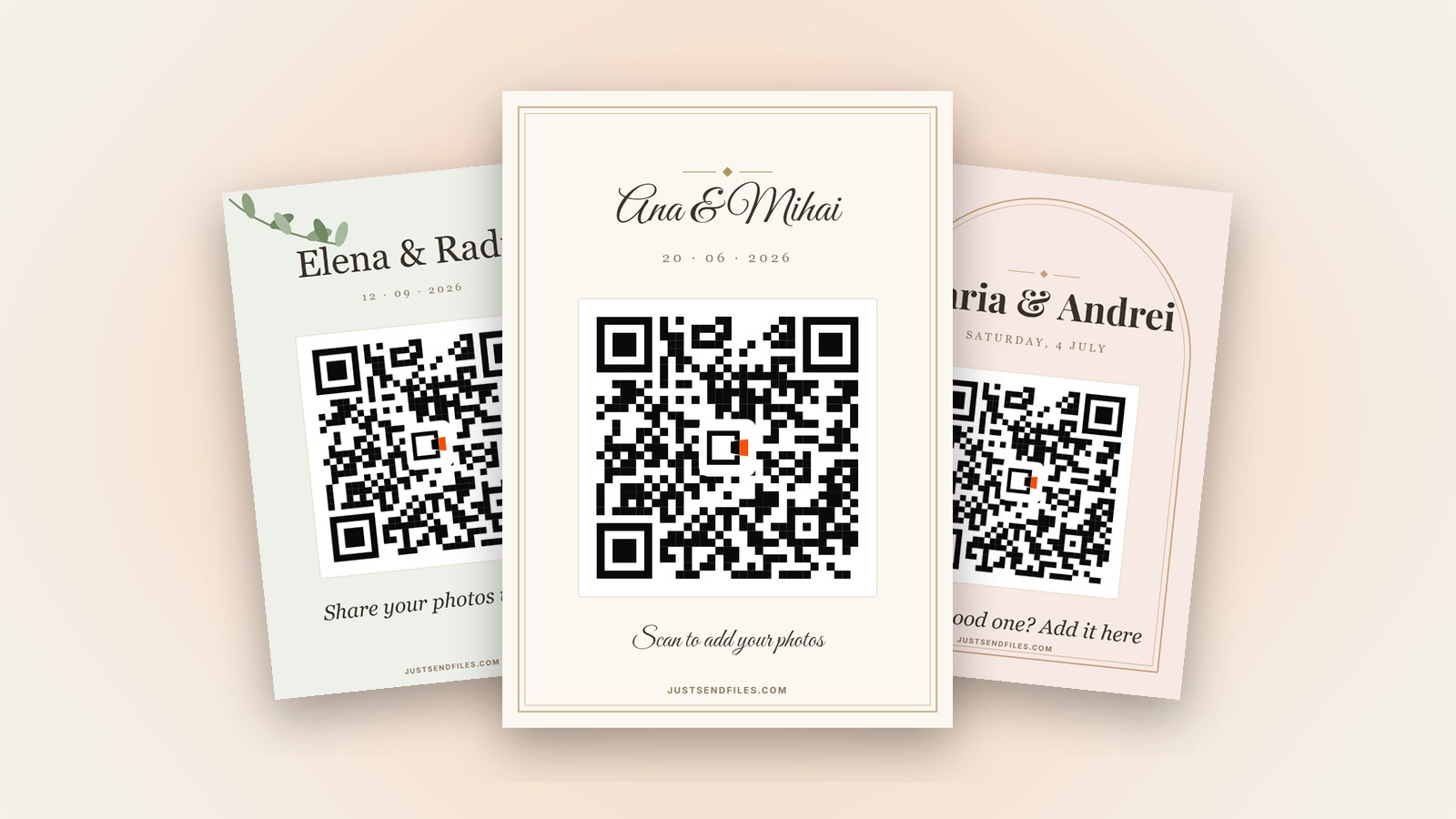
- Pick a wedding template, add your names and date, print A4 or A5.
- Start with a free Room, add the QR when you need it.
You want the photos your wedding guests take on their phones, on the day, not weeks later. A sign with a QR code at the entrance is the simplest way to ask.
Every Room has a QR code. Guests scan it with the phone camera and the Room opens in the browser, so nobody installs an app or makes an account.
Why a sign works
Guests take most of their photos during the day and soon forget about them. A sign reaches them while the phone is in their hand.
Scanning takes a moment and there is nothing to type. Photos and videos arrive in the Room as they were sent, not compressed.
Find your Room’s QR code
Open the Room’s settings and go to the QR code tab, or use the ⋯ menu on the Room in /rooms. You get the code and three buttons: Edit, Download and Share.
The plain QR code is in every Room, free plan included. Download gives it to you as a PDF ready to print.
The designed sign, made with Edit, comes with Plus, Pro or a Room pass for one Room. Free Rooms last at most 3 days, and wedding photos keep coming for weeks, so you need a longer Room anyway.
Pick a wedding look
Tap Edit to open the editor, with Template, Text, Font, Colour, Style and Size down the side. Simple, Wedding, Garden and Arch are the wedding templates.
In Colour you set the background, from white, cream, blush pink or sage green to any colour you like. The code itself always stays black on white, so every phone can read it.
Add your names and the date
Text has three lines of up to 60 characters each. Put your names on the first, for example “Ana & Mihai”, and the date on the second, which you can also leave empty.
The line under the code says “Scan to add your photos” unless you change it. Pick a Font that matches your invitations, such as Elegant or Script. A tick can also print the Room’s link under the code.
Choose the size and print
In Size, A4 is 210 × 297 mm, good for an easel at the entrance, and A5 is 148 × 210 mm, good for a small frame. The preview is to scale.
Tap Save, then Download and choose PDF, the real page ready to print. The design stays saved on the Room, so the next download comes out the same.
Before the wedding day
Scan the printed sign with an iPhone and an Android phone. Apple says you open the Camera app, hold the iPhone so the code appears and tap the link. Google says a Pixel camera recognises the code by itself.
After printing, don’t use Regenerate link. A new link makes every printed QR code stop working, and the site warns you first.
Guests scan the sign and add photos and videos as they were sent, not compressed. No app, no account.
Your wedding photos in one Room →Questions
Do guests need an app to scan the QR code?
No. Apple says you open the Camera app and hold the iPhone so the QR code appears, then tap the link. On Pixel phones, Google says the Camera app recognises the code by itself.
Can guests see and download the photos too?
Yes. Everyone with the link can add photos and videos and download them, one at a time or all at once.
What happens if I change the Room’s link after printing?
Every printed QR code stops working, and the site warns you before you do it. Print the sign once you are happy with the link.