

In short
- Make a Room and download its QR code.
- Put it on the tables, at the bar, on the menu.
- Guests scan and upload from the browser, no app or account.
Get the Room’s QR code
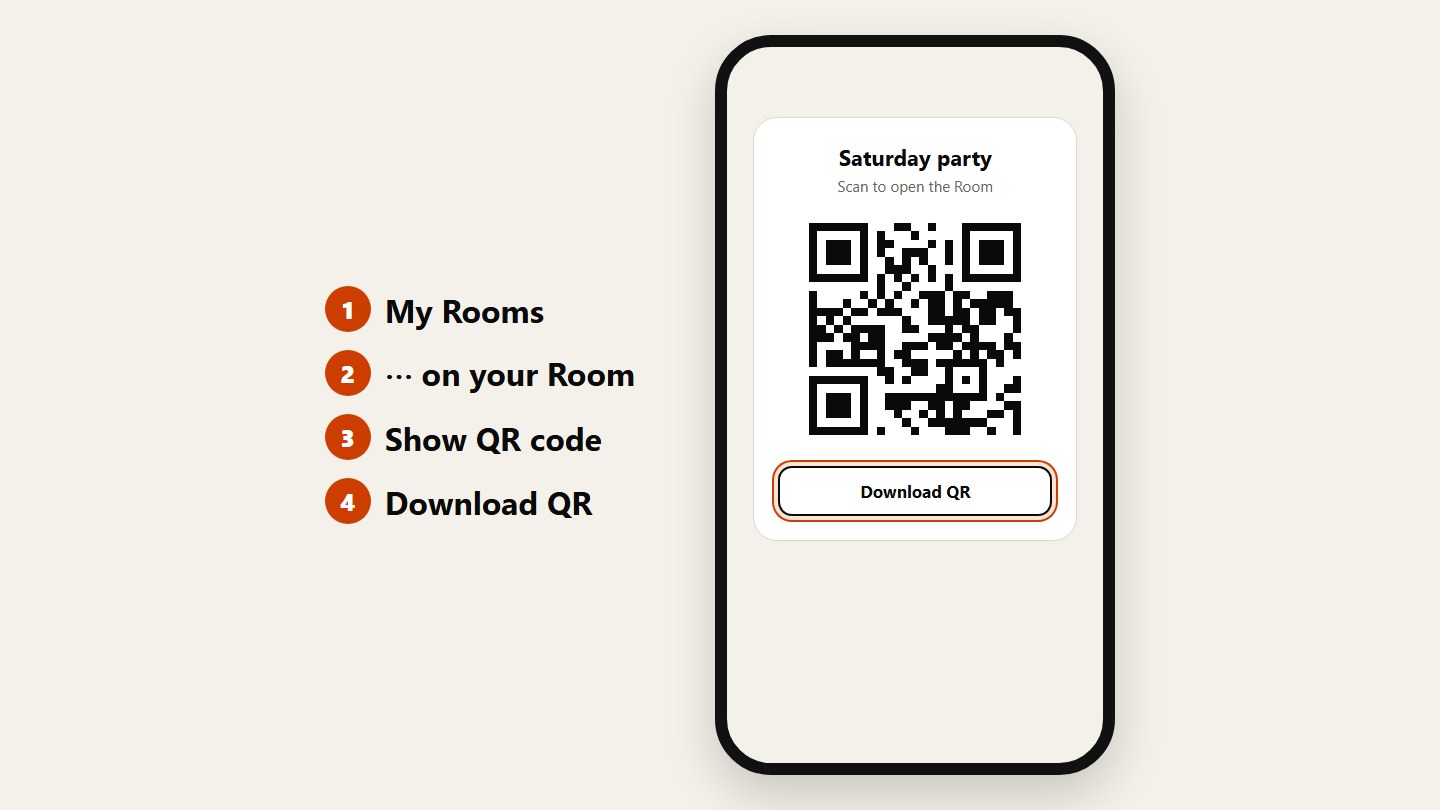
Create a Room for the event. In My Rooms, tap ⋯ on it, then Show QR code and Download QR. You get an image ready to print.
Put it where people pause
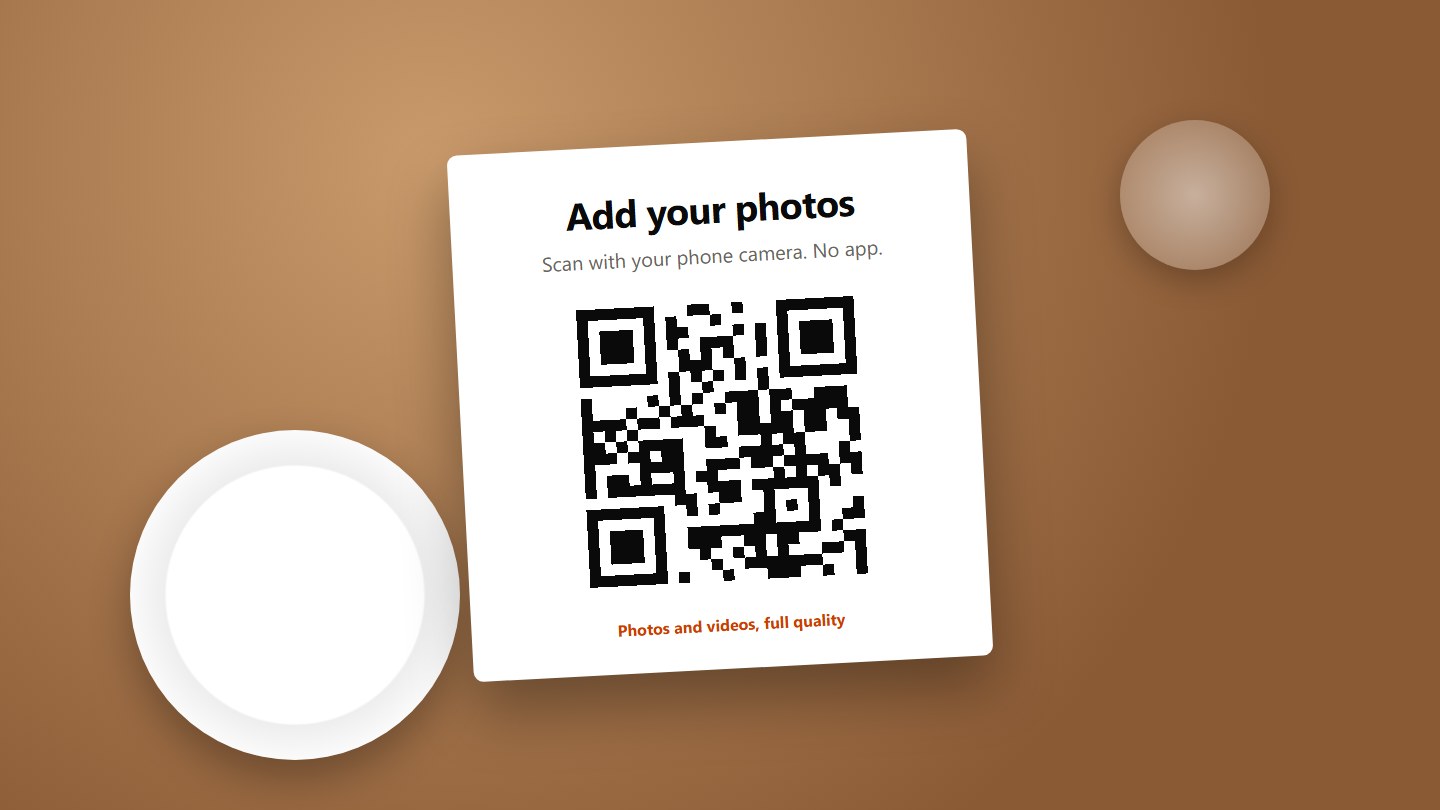
On every table, at the bar, on the welcome sign or the back of the menu. Print it big enough to scan from a chair.
Guests scan and add photos
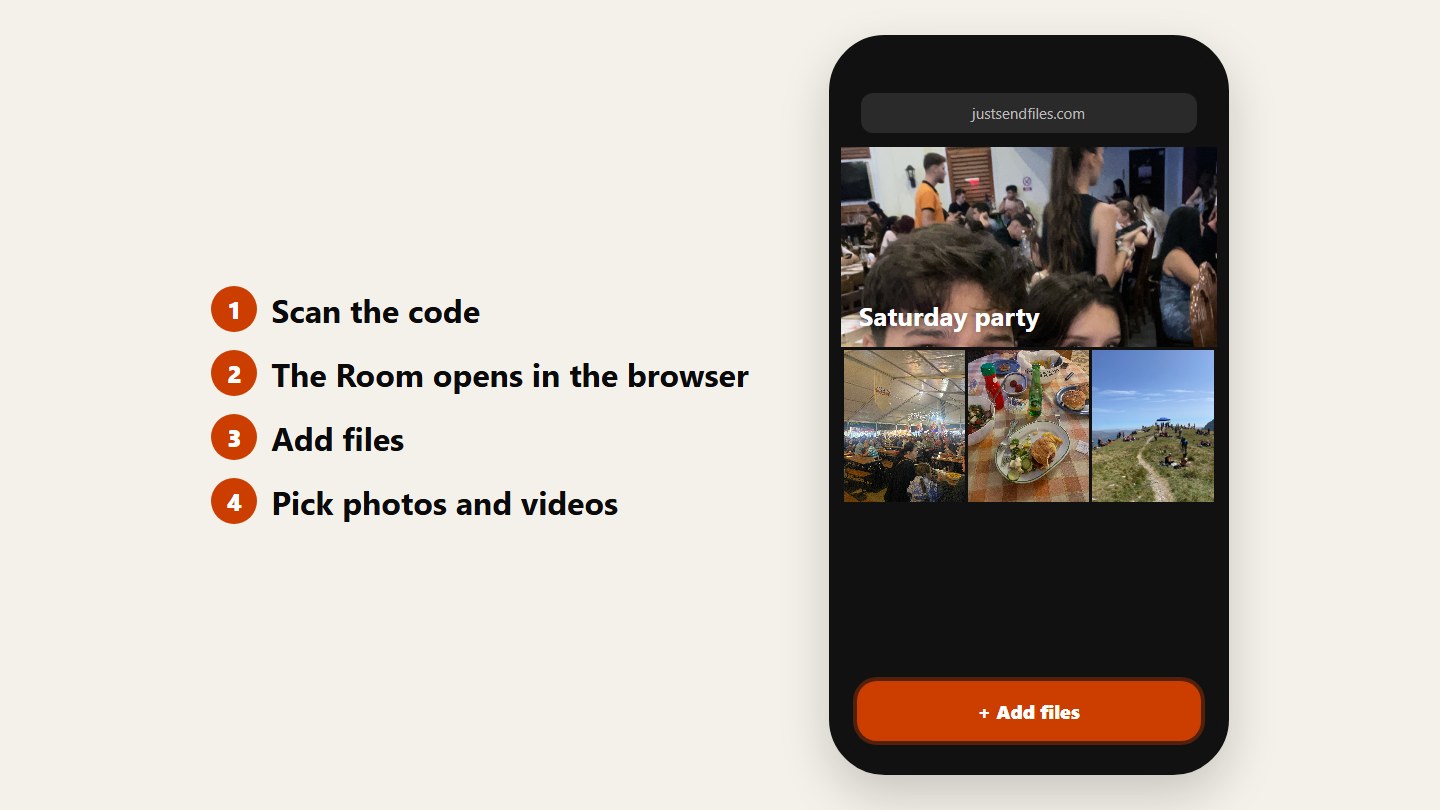
The code opens the Room in the phone’s browser. They tap Add files, pick photos and videos, and that’s it. Everything arrives in full quality.
Questions
Do guests need an app?
No. The code opens a web page in the phone’s browser, and guests pick photos and videos from their gallery right there.
Can strangers upload if they find the code?
Anyone who scans it can open the Room. In public places add a PIN and turn on approval, so new files only appear after you accept them.
Will the photos keep their quality?
Yes. A Room doesn’t compress, resize or convert anything. Files arrive exactly as the phone sends them.
One link. Everyone’s photos.
Free up to 10 GB. Guests never need an account.