
In short
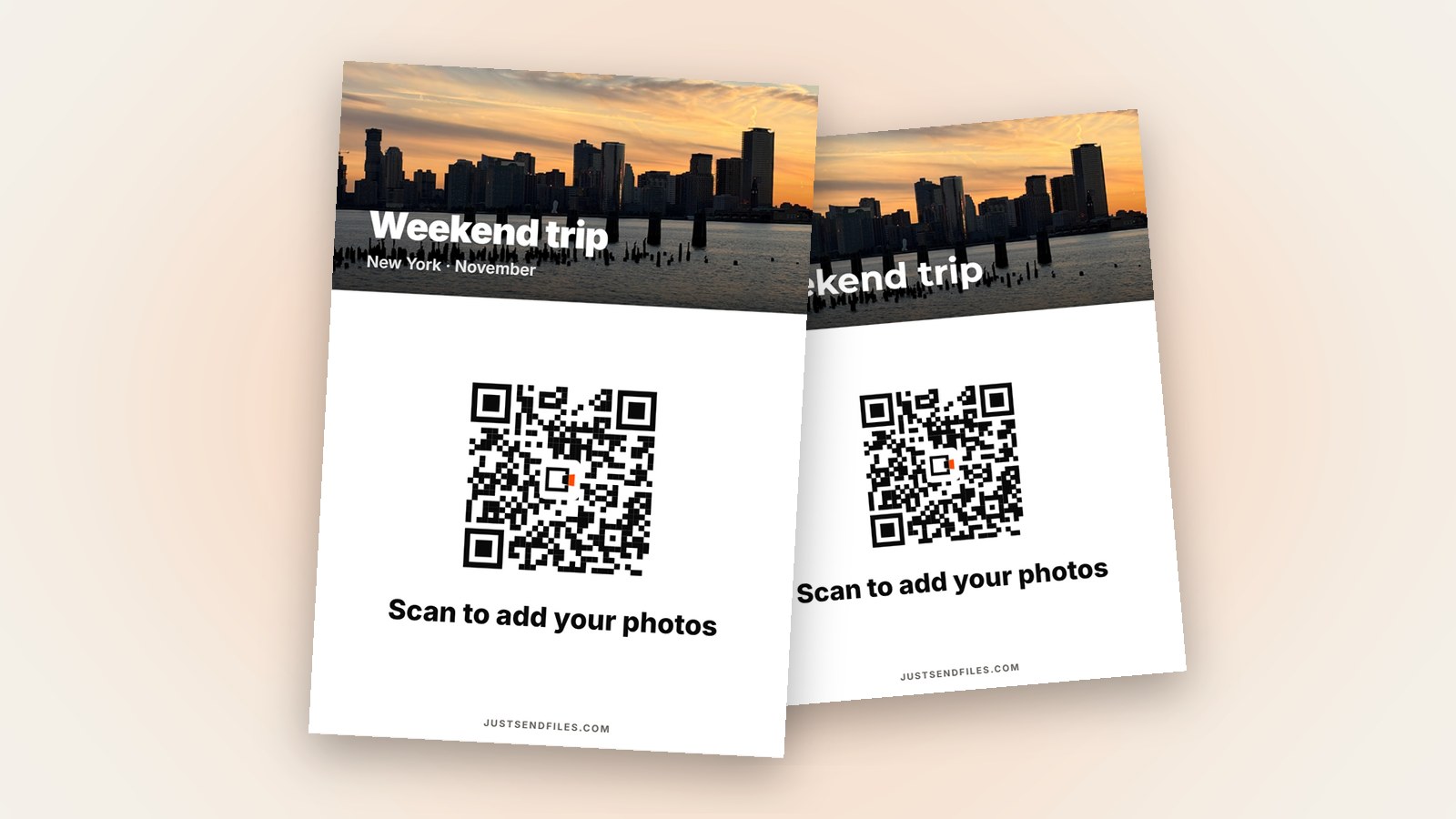
- The Room cover template puts your Room’s cover photo on the QR poster.
- The code itself stays black on white, so phones can still read it.
- Start with a free Room, add the photo QR when you need it.
You want a QR sign for your wedding or party, but a plain black square on white paper looks out of place next to everything else you planned.
A QR poster can carry a photo and still scan, as long as the code itself stays black on white. Phones read that part, the rest is yours.
Why the code stays black on white
Whatever template you choose, the code itself is always black on white, so phones can read it. The JSF logo sits in the middle of the code.
The photo, your text and the background colour make the poster yours. The code stays plain on purpose, because nobody can scan pure decoration.
Open the QR code tab
Every Room has a QR code. Open the Room’s settings and go to the QR code tab, or open /rooms, tap the ⋯ menu on the Room and choose QR code.
The tab shows the QR and three buttons: Edit, Download and Share. Edit opens the editor, with Template, Text, Font, Colour, Style and Size.
Choose the Room cover template
Tap Template and pick Room cover. The poster then shows the Room’s cover photo, so a picture of the two of you or of the venue becomes the face of your sign.
Pick the cover with care, because the poster holds on to the photo it had when you tapped Save, even if the Room’s cover changes later.
Add names, a date and one line
Under Text you get three lines of up to 60 characters each: a title such as “Ana & Mihai”, an optional second line such as “20 · 06 · 2026”, and the line under the QR.
The line under the QR says “Scan to add your photos” unless you change it. A tick can also print the Room’s link under the QR, for anyone who would rather type it.
Pick a size and download
Under Size choose A4, A5, Table card (four on an A4 sheet), Sticker (six per A4), Instagram post or Story. The preview is to scale, so what you see is what prints.
Tap Save, then Download and choose PDF, PNG or JPG. The PDF is the real page, ready to print. PNG and JPG come out at 300 dpi, and Share sends the picture from your phone.
What you need for it
The plain QR is in every Room, free ones included, and Download gives it as a PDF. The designed QR behind the Edit button, Room cover included, comes with Plus, Pro or a Room pass for one Room.
Free Rooms last at most 3 days, and wedding photos keep coming for weeks. Plus keeps a Room up to 30 days, Pro longer, and a Room pass keeps one Room a year.
Once the posters are printed, leave the Room’s link alone. Regenerate link makes every printed QR stop working, and the site warns you before it does.
The Room cover template puts your photo on the sign. Guests scan it and add their photos in the browser, with no account.
A QR poster with your photo →Questions
Will a photo on the poster stop phones from reading the QR?
No. In every template the code itself stays black on white, with the JSF logo in the middle, so phones can read it. The photo is the poster’s picture, not part of the code.
What size should I print it at?
A4 (210 × 297 mm) or A5 (148 × 210 mm) suits a sign. Table card prints four A6 cards on one A4 sheet, with lines to cut.
What if I change the Room’s cover photo later?
A poster keeps the cover it was saved with. Changing the Room’s cover afterwards does not change a poster you already saved.