

- One Room for the event, with its name and date.
- Choose who sees what: everyone, or only you.
- Send the link in the family group, then download everything.
Make one Room for the event
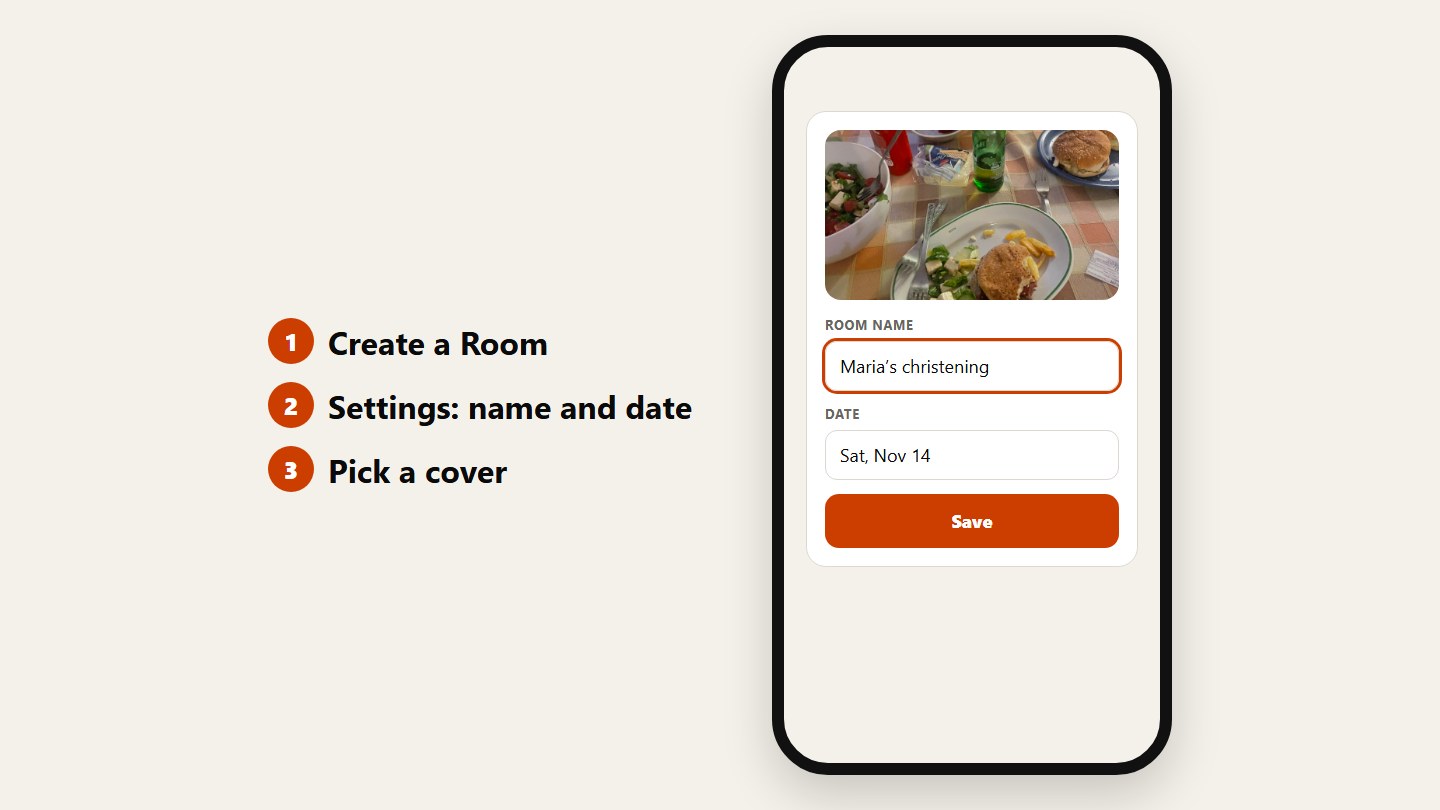
Create a Room, then give it the event’s name and date in its settings and pick a cover. It takes a minute, and guests will know they’re in the right place.
Choose who sees what
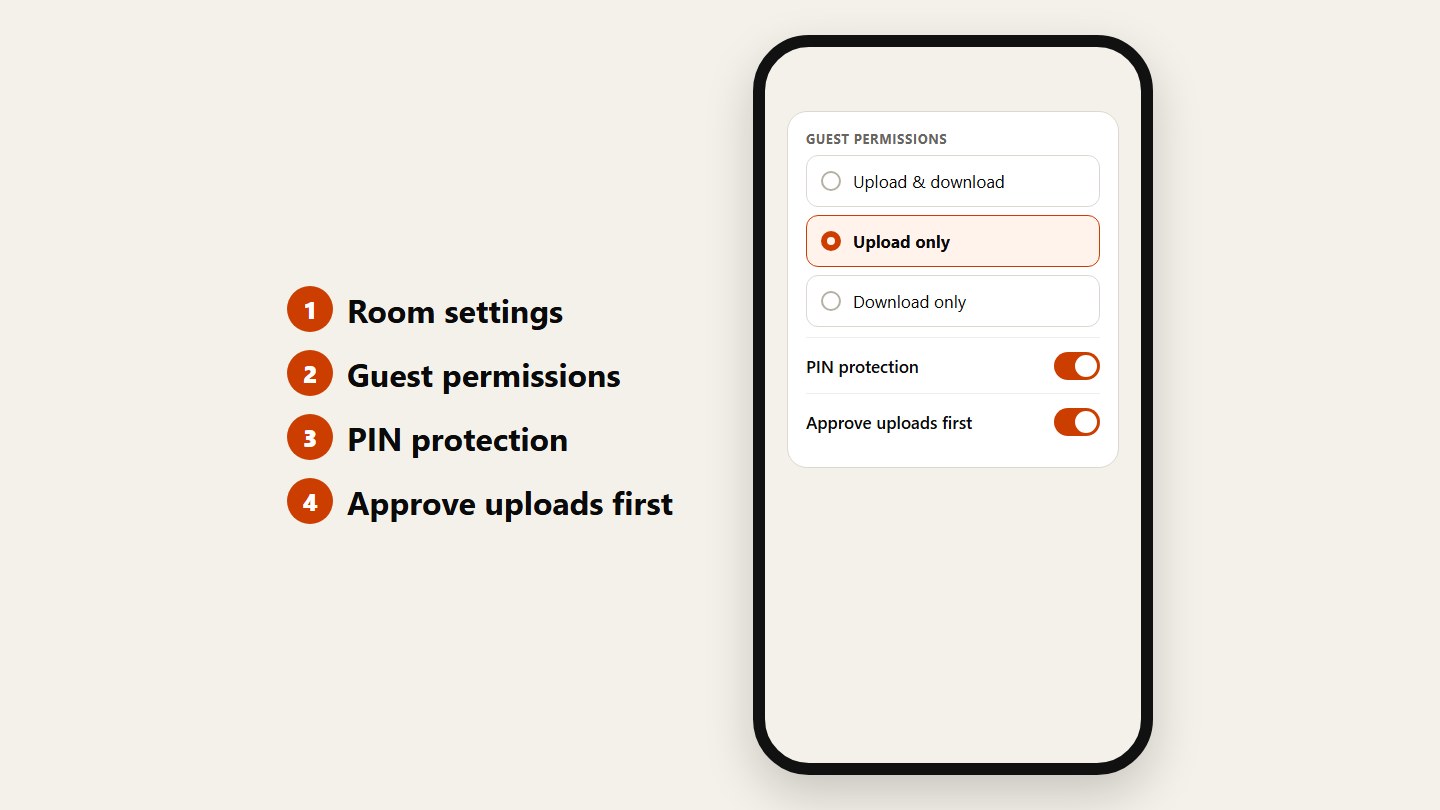
Under Guest permissions, pick Upload only if just you should see the photos. Turn on PIN protection and Approve uploads first when children are in the pictures.
Send the link in the family group
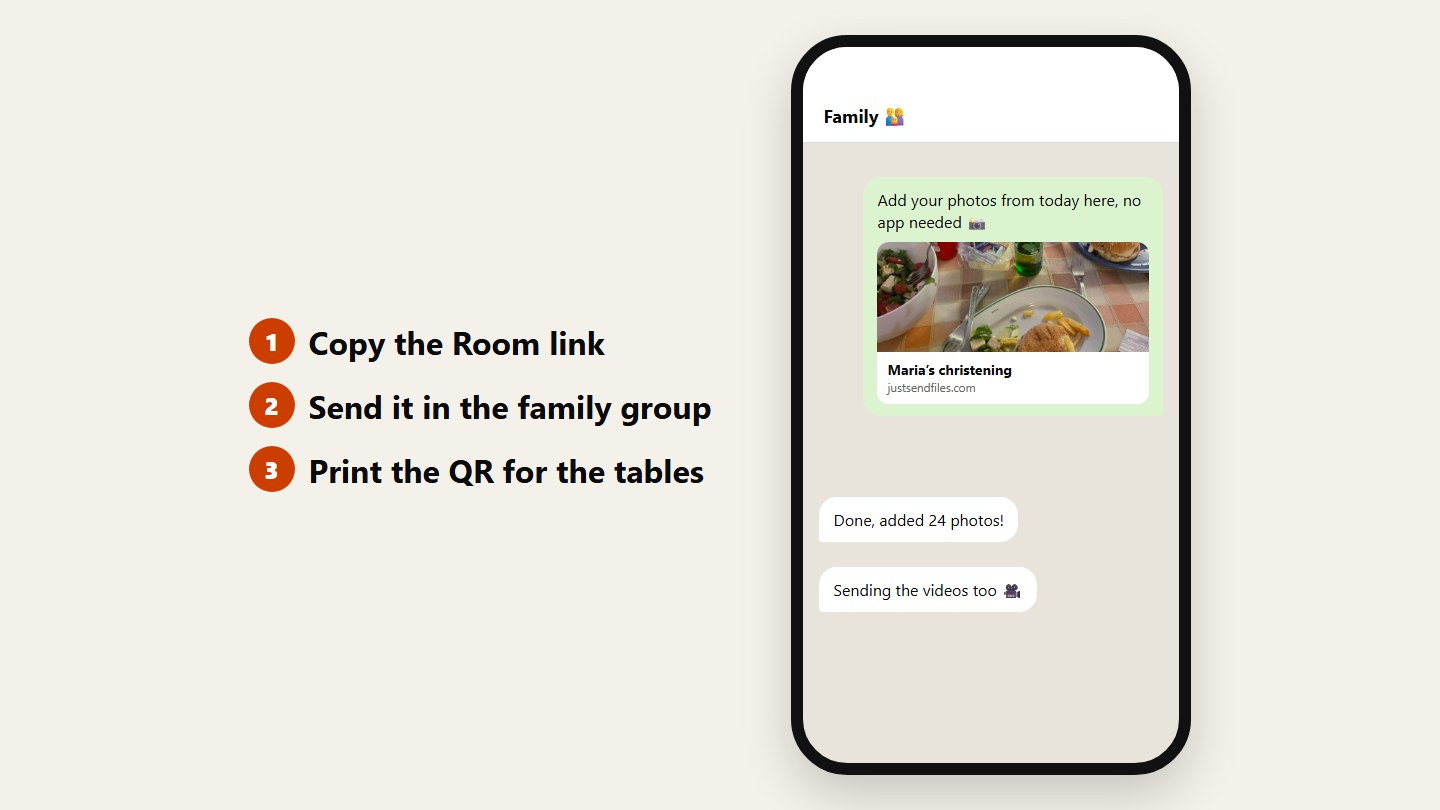
Copy the Room link and send it where the family already talks. For the tables, print the QR code. Guests add photos from the browser, no app.
Download everything before it closes
When the uploads slow down, open the Room and tap Download all. A free Room stays open up to 3 days, so keep your own copy.
Questions
Can guests add photos without seeing each other’s?
Yes. Set the Room to Upload only. Guests add photos and videos, and only you see them.
Is there a limit on the number of guests?
No. A Room has no limit on guests, and none of them need an account. The size depends on your plan, for example 10 GB per Room on Free.
How long does the Room stay open?
Up to 3 days on Free and up to 30 days on Plus. Files are deleted when it expires, so download them before.